

Free · Windows 11 & Ubuntu · Android 8+
Your phone is the better webcam
Camora turns your Android phone into a webcam for your computer. Connect with a USB cable or over Wi-Fi, choose “Camora” in Zoom, Meet, Teams or OBS, and look sharp in every call. No account, and nothing leaves your network.
Download Camora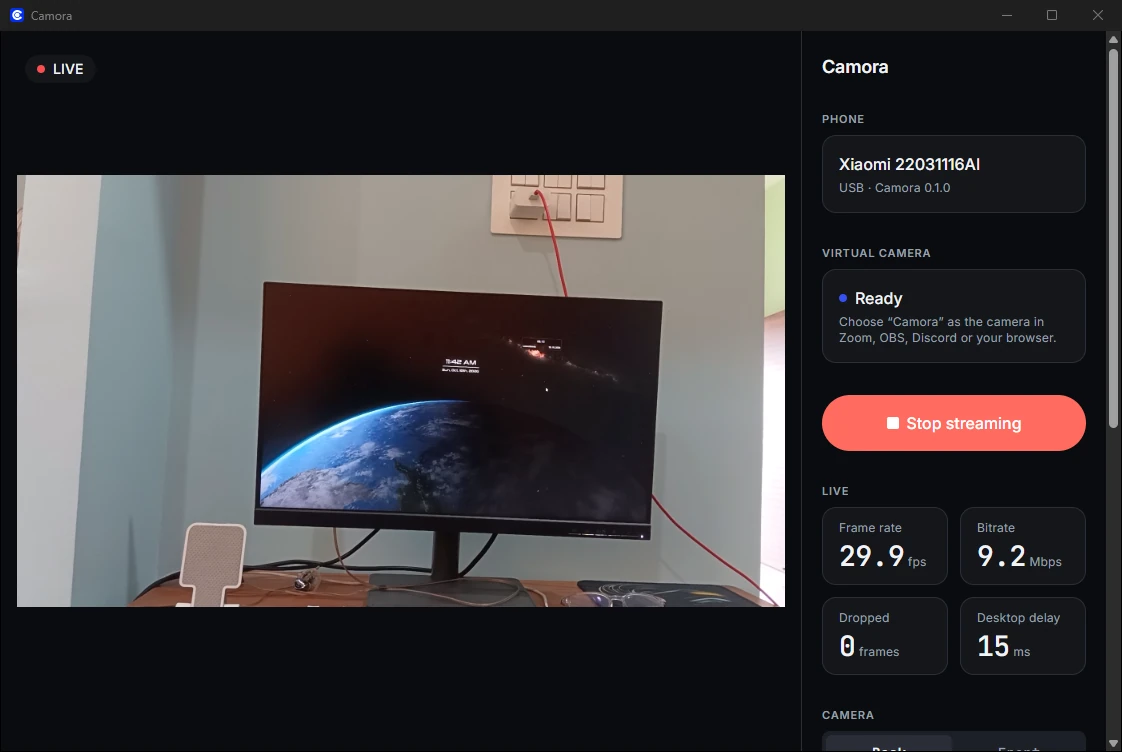
How it works
Set it up once. After that it's one tap.
Connect your phone
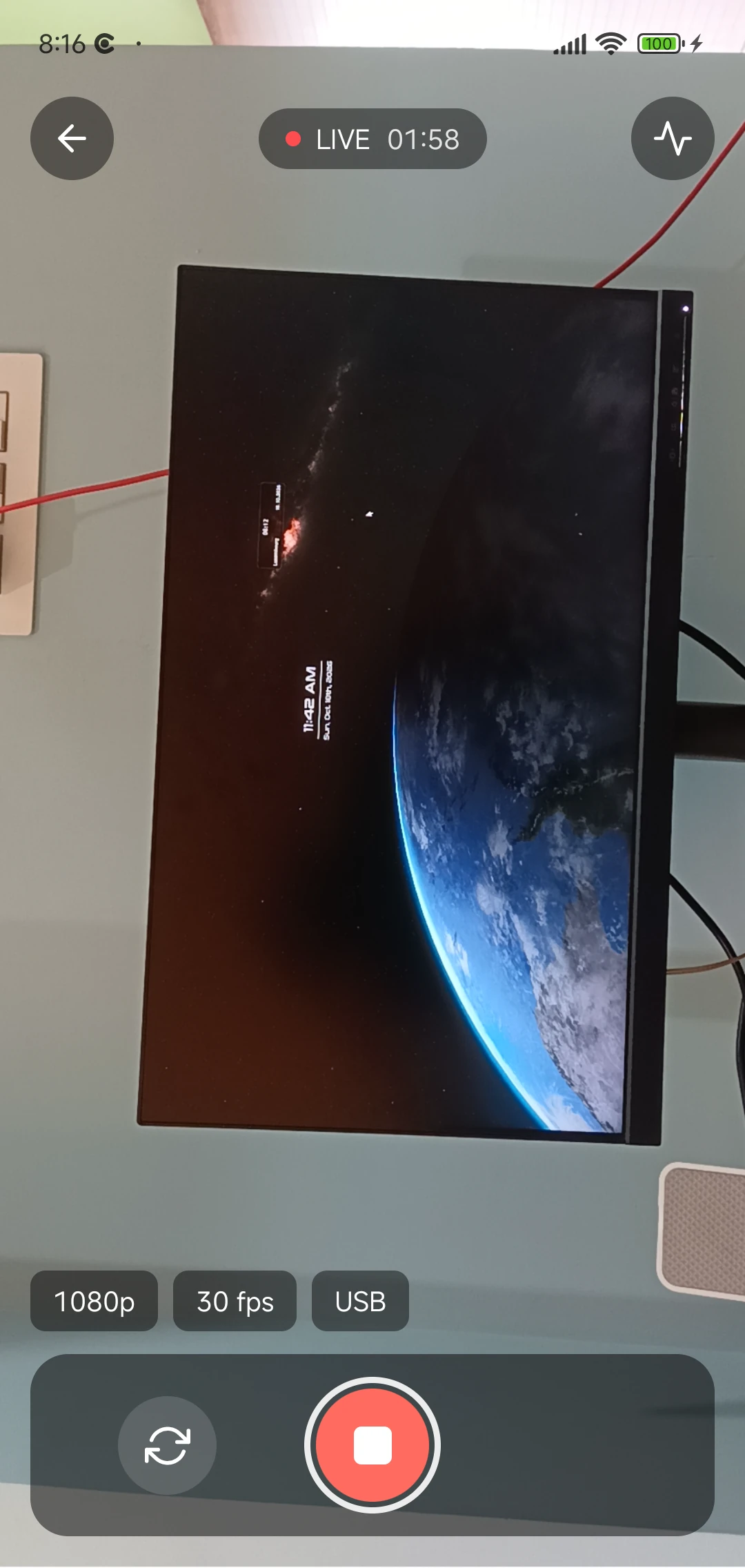
Use a USB cable for the lowest delay, or Wi-Fi to go wireless. Camora walks you through the one-time USB setup, and pairs over Wi-Fi with a 6-digit code.
- USB: about 150 ms from camera to screen
- Wi-Fi: pair once, then it connects by itself
- Reconnects on its own if the link drops

Pick your picture
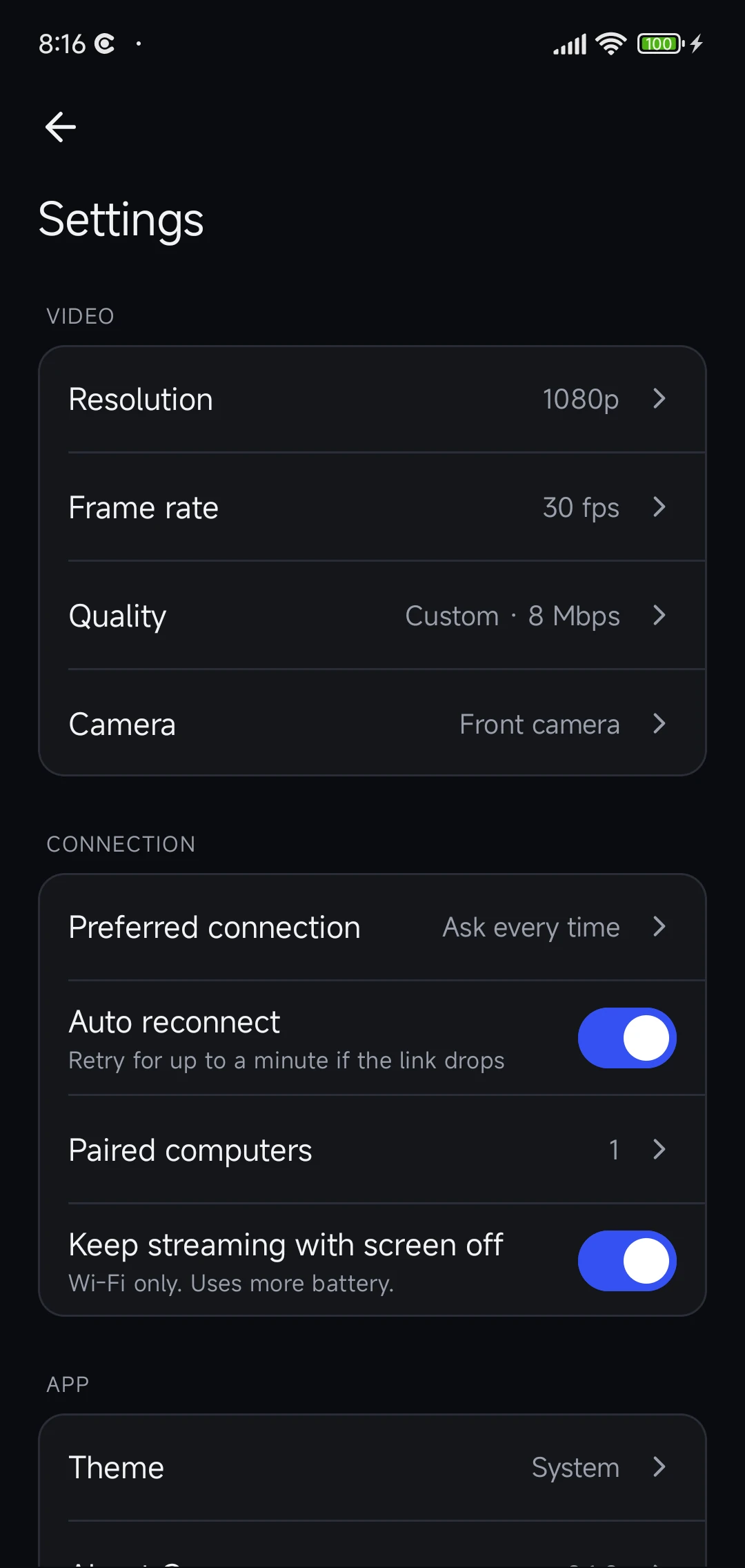
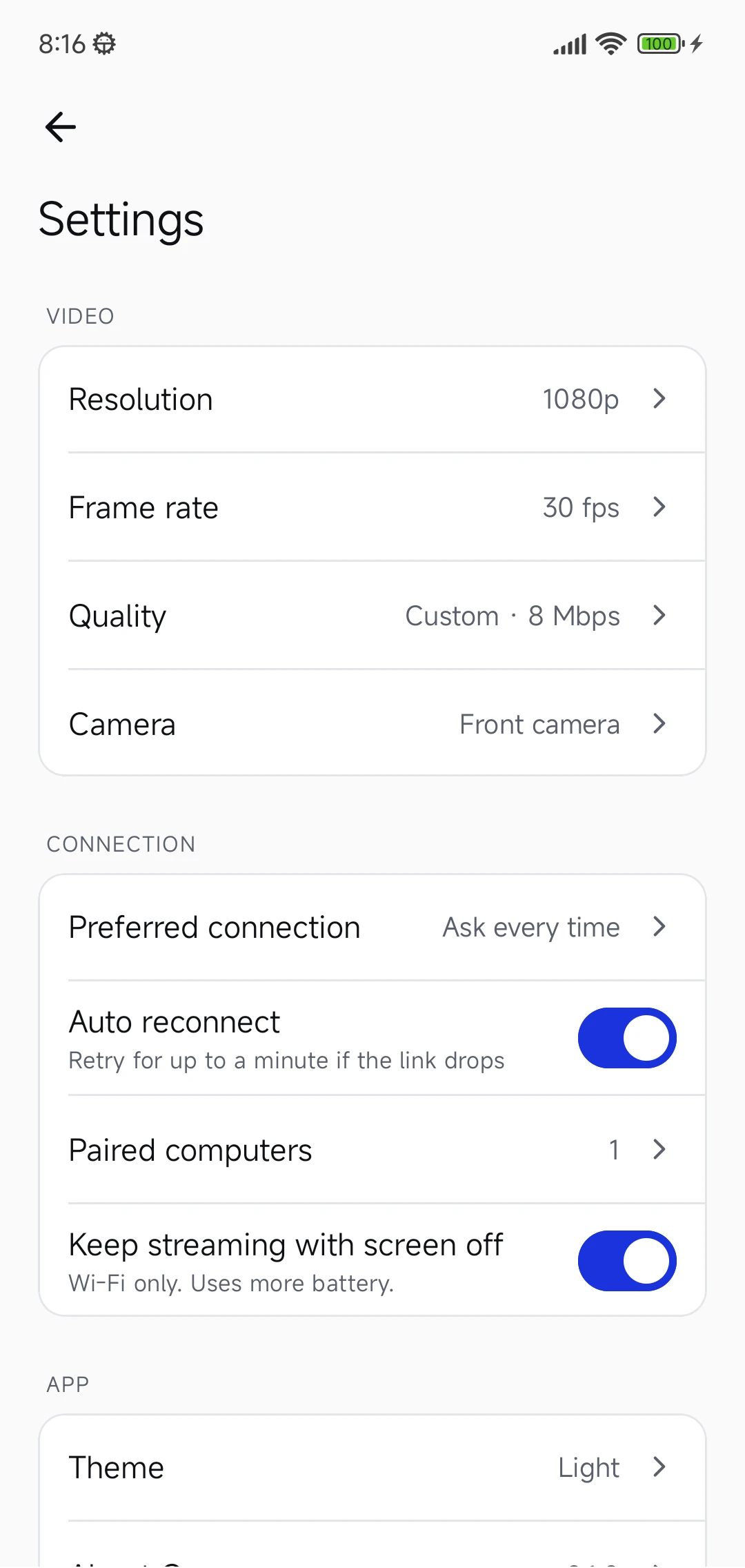
Choose 720p or 1080p, 30 or 60 fps, the front or back camera, and the quality. Change it on the phone, or right from the computer while you're streaming.
- ✓Hardware H.264 encoding on the phone
- ✓60 fps where your camera supports it
- ✓Tells you before the phone gets too hot
Choose “Camora” in your video app
Camora shows up as a normal webcam. Pick it in Zoom, Google Meet, Microsoft Teams, OBS or your browser. No plugins, nothing else to install.
 You
You Camora
Built for the details
A good picture takes more than a good camera.
Private by design
No account, no cloud. Your video goes straight from your phone to your computer.
Low delay over USB
About 150 ms from the phone's camera to your screen at 1080p, measured. Quick enough to talk naturally.
Questions
Setting it up? The step-by-step guide covers installing, connecting and troubleshooting.
Is Camora free?
Yes. No account, no subscription.
Does it need the internet?
No. Over USB it works with no network at all; over Wi-Fi the phone and computer only need to be on the same local network.
Is my video private?
Your video goes straight from your phone to your computer and nowhere else: no cloud, no account. Over Wi-Fi the connection is encrypted, and only a computer you paired with a code can connect.
Which video apps work?
Any app that lets you choose a camera: Zoom, Google Meet, Microsoft Teams, OBS, and websites in your browser. Camora appears as a camera called “Camora”.
USB or Wi-Fi?
USB has the lowest delay (about 150 ms from camera to screen) and charges the phone while it streams. Wi-Fi needs no cable and adapts to your network; pair once and it reconnects by itself.
Does it send the phone's microphone too?
Not yet: Camora sends video. Use your computer's or headset's microphone in the video app.
Does it work on Windows 10, macOS or with an iPhone?
Not yet. Camora needs Windows 11 or Ubuntu, and an Android phone.
Why do I need USB debugging?
It's how the computer reaches Camora on the phone over the cable. You turn it on once; Camora's Set up USB screen walks you through it. Wi-Fi doesn't need it.
Can I use the phone's front or back camera?
Either: switch on the phone or from the computer. The back camera usually gives the better picture.
Turn the phone in your pocket into your webcam.
Camora is free. Install it on your Android phone and on your Windows or Ubuntu computer, and you're live in a few minutes.
Download Camora